

Composer
The composer is where you write your prompts. Everything about how the next turn behaves sits on its toolbar and in the Configure (quick settings) menu.
| Control | What it does |
|---|---|
| Attachments | Paperclip: pick files or images from the host |
| Mentions | Type @ for files, terminals, URLs, briefs, agents, kill chain |
| Commands | Type / for builtins and user-invocable skills |
| Model | Which model runs the turn |
| MCP | Toggle external servers for this run |
| Context gauge | How full the window is |
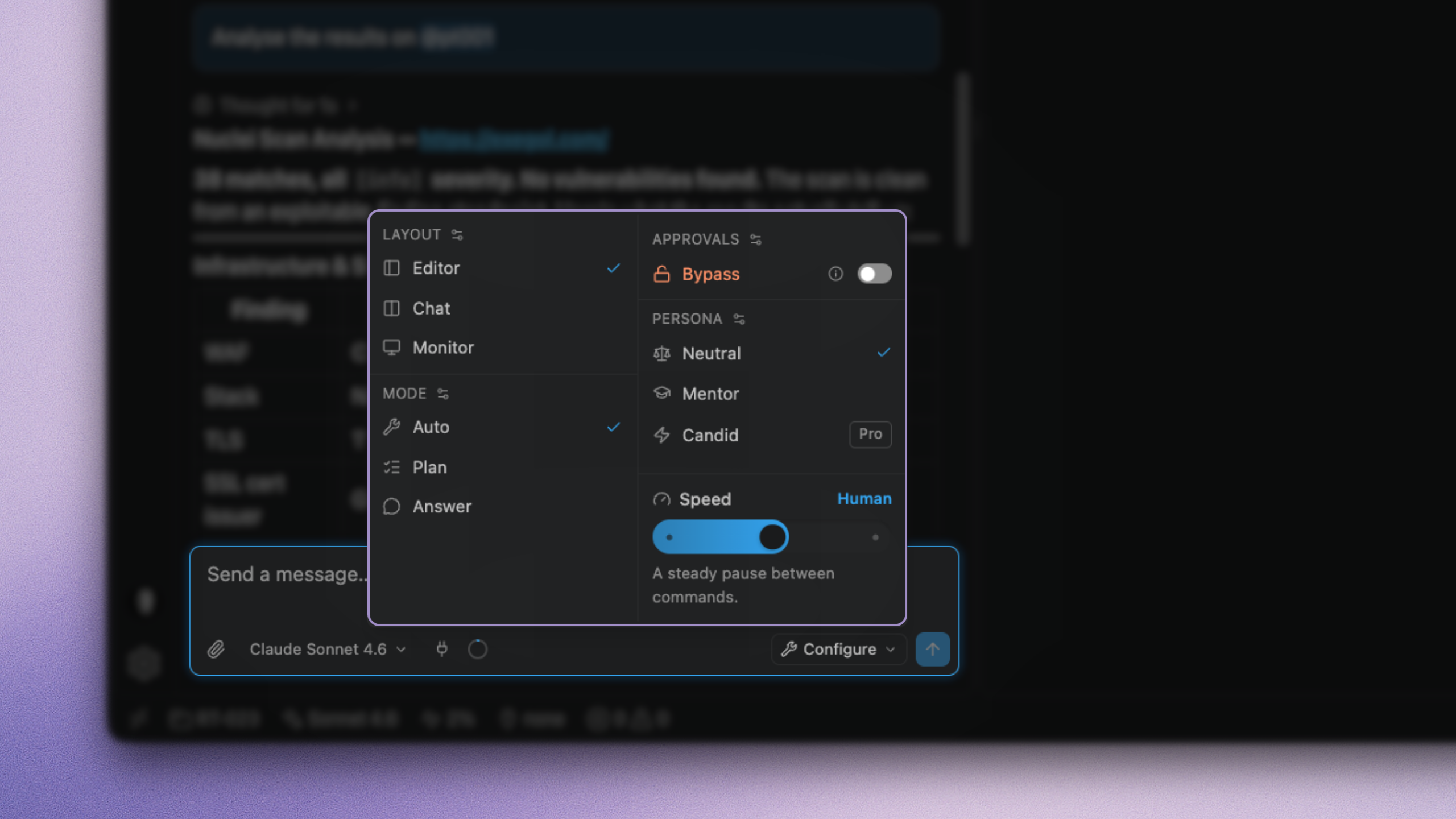
| Quick settings | "Configure" menu: Layout, mode, Bypass, persona, speed |
The composer border hints before you press Enter: blue is normal, orange means Bypass is on. Colour shows while the composer has focus.
Attachments
The paperclip opens the OS file picker and attaches from your host (the machine running the editor), not from the container.
- Text files become context chips the model reads at send (large files may be truncated)
- Images go through the multimodal path when the selected model supports images
- You can also paste an image into the composer on models that accept images
Chips above the composer show what will go with the next message. Content is snapshotted when you send, not when you attach.
Mentions
Type @ in the composer for a mention menu. What appears:
| Mention | What it does |
|---|---|
@path/to/file or folder | Read file content or list a folder from the container (@container:/path when several containers are active) |
@<terminal> | An open terminal’s live output |
@https://… | Fetch the page as text at send |
@brief:… | A brief page (full document). Type @brief (or a collection name) to drill into ingested sources, then pick a page |
@<agent> | Start of a turn that runs that agent instead of the main agent. Message must begin with @name, then the task |
@killchain | Ask the agent to reconstruct / save the kill chain (optional @killchain:/folder) |
Skills are not @ mentions. Use Commands (/) for those.
Also from the editor or a terminal:
- Add Selection to Chat
- Add Terminal Selection to Chat
You can keep typing while a run streams. Messages queue under the composer and send when the turn ends, unless you interrupt and send now.
Commands
Type / for a commands menu: builtins plus user-invocable skills.
| Command | What it does |
|---|---|
/clear | Start a fresh session |
/compact | Summarize and shrink the context |
/help | Short help |
/<skill> | Run a user-invocable skill by name |
Model
The model picker lists what your configured providers can actually call. Reasoning effort, when the model supports it, is per model. See Providers and models.
MCP
The MCP button turns MCPs on or off for the current run without editing Settings. A red dot on the button means one or more servers failed; an amber mark means a server is waiting (for example on a container) without failing. Open the menu for per-server status, then fix or retry under Settings → MCP.
Context gauge
The ring shows how much of the model window is used. Click it for a breakdown by category. When the window fills, Studio can compact older turns so the run can continue. Compaction costs tokens and loses detail; keep durable findings in /workspace files and in the kill chain.
Quick settings
Open Configure on the composer toolbar. This is the mid-run control surface:
| Setting | Effect |
|---|---|
| Layout | Editor, Chat, or Monitor (Layouts) |
| Mode | Answer, Plan, Auto, or a mode you built (Modes) |
| Bypass | Approvals off: run gated tools without cards (Approvals) |
| Persona | Working style (Personas) |
| Speed | How streamed text is painted: Step / Human / Machine (ids: slow / normal / fast) |
Layout, mode, Bypass, and persona also appear in Settings. Speed does not. It only exists in composer quick settings. It paces reveal of already-received text (including typewriter-style command paint); it does not slow the model or the container.
Surfaces that share this thread
The same conversation appears in the sidebar, the full-width chat tab, Room tiles, and Monitor. Closing a panel does not stop the run. For several sessions at once, see Rooms.